


Users and sign-in
People always sign in to quanthea: there is no open access. Admins invite people and give each a role in Settings → Users, and choose how they sign in in Settings → Authentication.
Roles
| Role | What they do |
|---|---|
| Viewer | Reads pinned dashboards, alerts, reports and their runs, snapshots, questions and answers. |
| Analyst | Also asks questions, has panels explained, and mutes alerts for up to 7 days. |
| Editor | Also builds dashboards, alerts and reports, pins, activates, and takes snapshots. |
| Admin | Also manages sources, models, users, sign-in, notification channels and settings. |
No one owns a dashboard. A thread belongs to whoever started it: they write in it, and pin or unpin what it built. Admins read any thread but never write in it.
Users
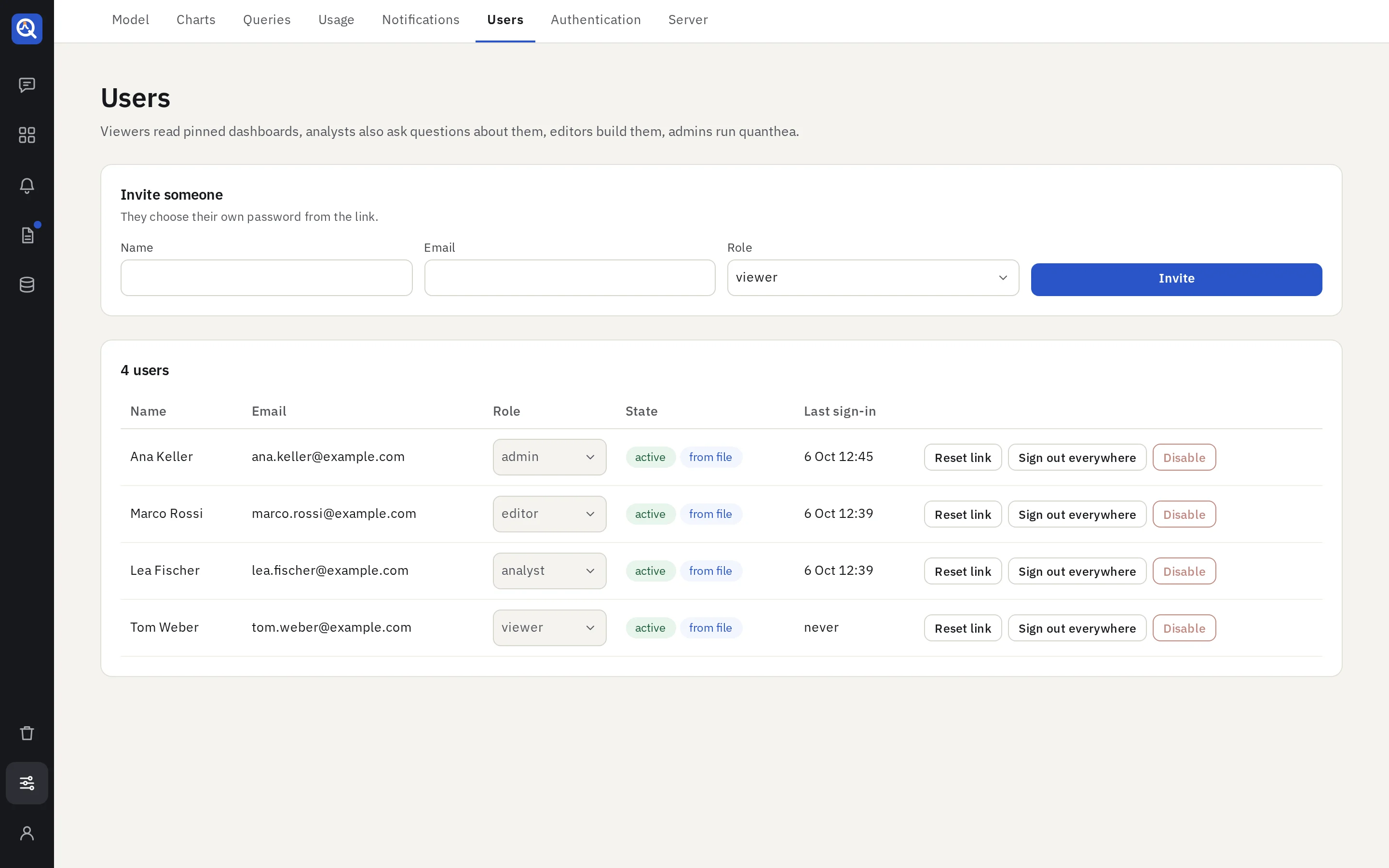
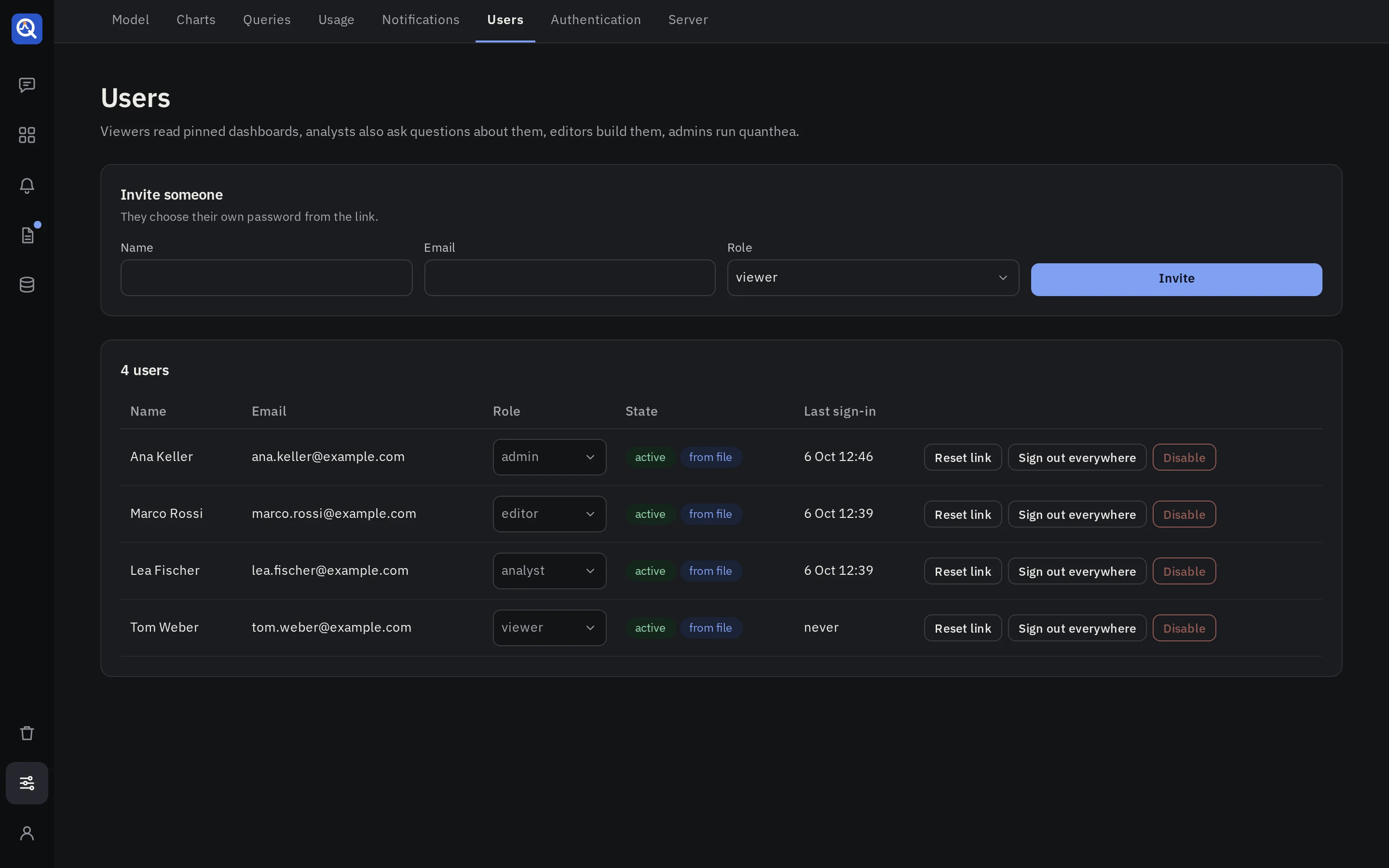
- Invite someone: their email, name and role. quanthea gives you a link; they choose their own password from it within 72 hours. An invited person can also sign in through a provider with that verified email.
- Change a role, or disable someone: their sessions end at once.
- Reset link: a link to choose a new password, valid 24 hours. A new link replaces the old.
- Sign out everywhere ends all of someone’s sessions.
quanthea always keeps one enabled admin.
Passwords
A password needs 12 characters or more, with at least 5 different ones. It must not be a well-known password, or hold the person’s name or email.
After 5 failed sign-ins on an account, or 20 from one address, each attempt waits, from a minute and doubling. Nothing locks an account for good.
A session ends after 24 hours without a request, or 7 days after it began.
Locked out
quanthea reset-admin prints a one-time link that sets an admin’s password. See
Deploy.
Sign-in providers
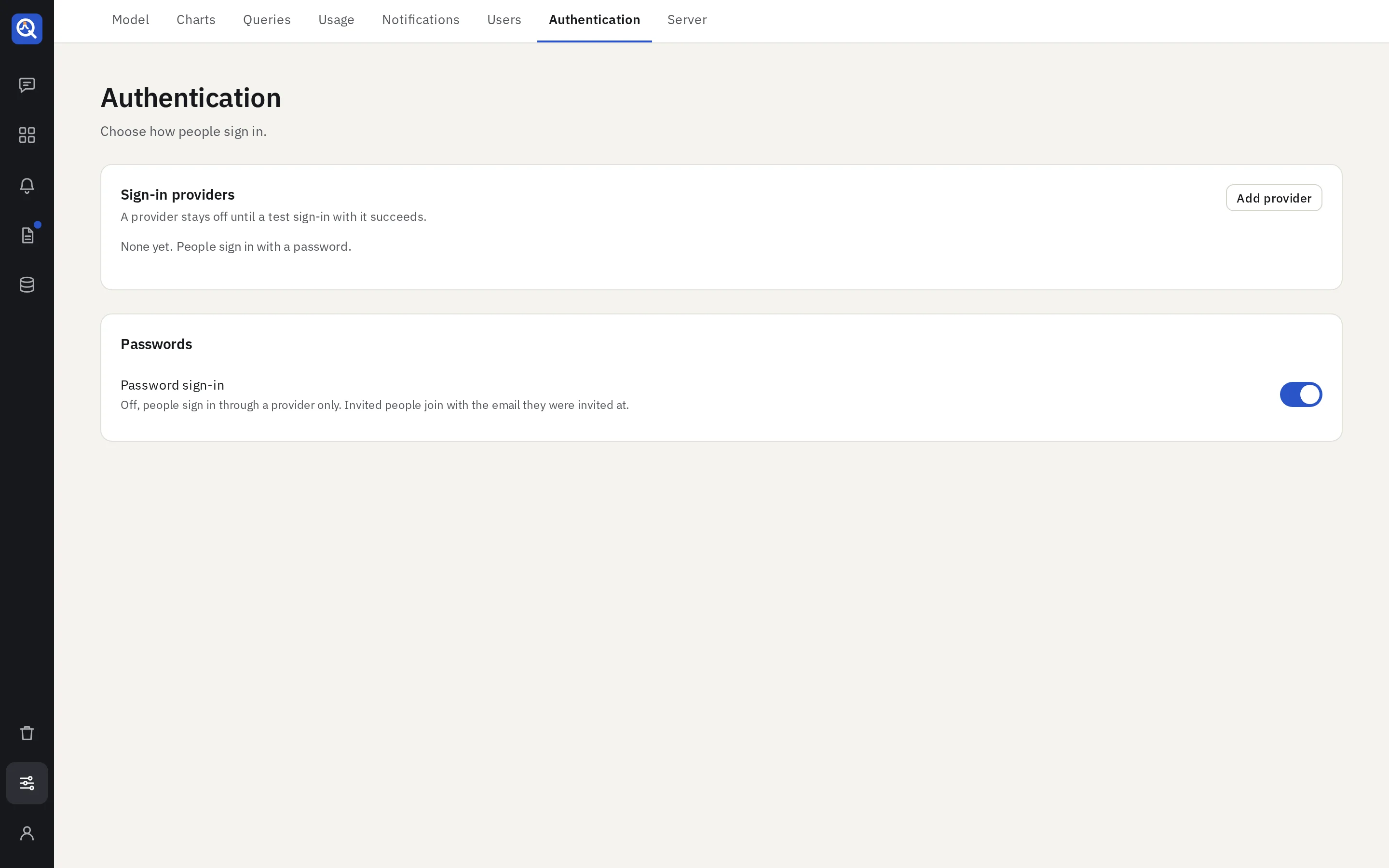
quanthea signs people in through GitHub, Google, GitLab (gitlab.com or your own) and Microsoft Entra ID (one tenant). It needs its public URL set; see Environment variables.
- Register quanthea as an OAuth app at the provider, with the redirect URI the form shows.
- In Settings → Authentication, add the provider: paste the client id and secret, and name the button.
- Choose Who may join.
- Test sign-in. A provider stays off until a test sign-in with it succeeds.
Who may join
Invited people always join, with the role they were invited with. A provider may also let others in, as viewers:
| Provider | Who may join |
|---|---|
| Google Workspace accounts of a domain | |
| GitHub | Members of a GitHub organisation |
| GitLab | Verified emails at a domain, or members of a group (subgroups included) |
| Entra ID | Everyone in the tenant |
By default a provider lets in invited people only. An account already in use is never linked by email alone: its owner signs in, and links the provider from the account menu.
Password sign-in
Password sign-in is on by default. Once an admin can sign in through a provider, you may turn it off: the sign-in page then shows the provider buttons only.
In the configuration file
Users, providers and password sign-in can be declared in the configuration file instead, so an instance can be rebuilt from Git. What the file declares shows a “managed by” badge and is read-only here. See the configuration file.